Operations Internal Process Documentation
Source
The processes that need documented will come from the Store Manager Operations L10. Processes identified for documentation should be added to the Backlog - Prioritized column of the Operations Internal Process Documentation workflow.
Workflow
You can find the Operations Internal Process Documentation workflow in Planner or Teams.
Planner
The workflow is titled Operations Internal Process Documentation and is open to all members of the People/Processes/IT team in Teams.
Teams
Within the People/Process/IT team there is a channel titled Operations Internal Process Documentation to organize the workflow.
Depending on the size of your window you may not see the tab within the channel. If there is a +1 next to the group name click that and you'll find the Plan.

Backlog - Prioritized
Each task in this bucket is a process that needs documented. The higher in the list the more important the documentation is.
The user who adds the task is responsible for prioritizing it
Add a task
To add a process to the Backlog simply click the + Add task button under the column header.
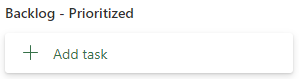
Tasks should only be added to the Backlog. This is the start of the process.
Prioritize the list
Prioritization is set by the order of tasks. Some views in Planner make it easier to see the order of a single bucket than others.
Board view is the simplest view to see the tasks in the Backlog. To enter Board view click the word Board to the right of the plan title. Drag and drop each task within the column to set the priority.

If you're viewing the plan in Teams it may show an icon instead of words.

John's Handoff
Since John is the subject matter expert (SME) for most operations processes it is important that he be the source of information. Tasks in this bucket need John to pull together the initial documentation.
Think of John as the author. He knows the information best and can capture it to train others.
As each process moves through the pipeline it will gather additional information. Before it leaves John's Handoff bucket the documentation from John should be attached.
Attach a document
You'll get a detailed view of the task in Planner when you click on it (without dragging). From there you'll see the attachments section, and a button to Add attachment.
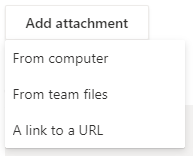
From there you can select how to attach the document: From computer, From team files, A link to a URL.
After John has attached his documentation the process should move to the next bucket: Jake's draft
Jake's draft
Jake will take the information from John and edit/format/standardize it into our searchable knowledge base. Tasks in this bucket are waiting on the initial draft to be documented in the Operations Processes section of the KMC/RPM Knowledge Base.
If John is the author of our processes think of Jake as the editor. Jake can look at the processes through the same "fresh eyes" as a new hire because he isn't familiar with the process.
There are two types of documentation: Training documentation and Working processes.
Training documentation is used to teach someone how to do something the first time. It carefully walks through all the information necessary and goes much more in-depth.
Working processes are reference materials after an employee has gone through the initial training.
Links to the Training documentation from the manufacturer will be included in our internal, Working processes (this knowledge base) for later reference.
Additionally, outside resources from the manufacturer will be linked to the documentation, rather than copied into the Working processes. This will help keep our documentation updated for a longer period of time.
Initial Draft
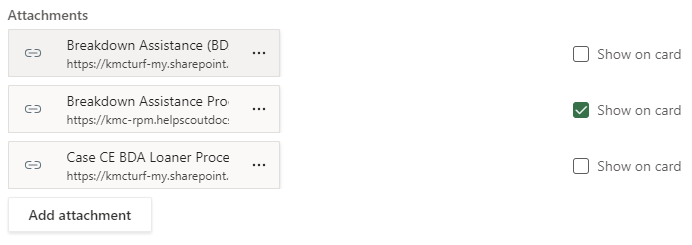
A draft of the edited process will be attached alongside the initial documentation. You'll know which one is the proposed draft because the Show on card checkbox will be checked.
A comment will be added with a tag for Aaron Kent when a process draft gets attached and the task is moved to the next stage: Feedback/Updates.
Feedback/Updates
The goal of this stage is for the SME and Store Managers to review Jake's draft for accuracy. Does the process make sense, and is it still accurate after editing/formatting?
Jake will update the documentation after gathering feedback and move it to the Roll Out stage.
Updates will continue until the SME and Store Managers agree it is ready to Roll Out.
Roll Out
At this stage the process is ready to be rolled out to the team.
Add an Issue to the store's weekly L10 with a link to the documentation in the Knowledge Base. Walk through the documentation when the Issue is up for IDS.
Encourage team members to visit the knowledge base any time they are working the process. You may not need to walk through every step every time, but the recommended best practice is to review the process before getting started and give it another once-over after the job is complete.