Backup Credit Card Processing
Our payment processor typically integrates directly with CDK. But because they are two separate providers, we can often still process credit card payments through our payment processor, even processing is not working through CDK.
This process is not difficult, but there are several key details that we need to get right. Read through the instructions below to find out how to process payments outside of CDK.
Communicate!
If you're having to use our backup process then this is urgent. Use the phone and call. Do not send this in an email.
- Call Braden IT at 317-863-4200. They will now work directly with CDK if the credit card reader is broken.
- Call the Accounting department at 317-599-4611 (ext. 4611) to notify them you are switching to our backup process.
- Call the Process & Training department at 260-205-5187 (ext. 5202) so they can work with Braden to resolve the issue.
Process Payment
- Set the payment method in CDK to Cash. If you leave it as Card then the ticket will not be closed out as paid. Accounting will reconcile these transactions later (which is why it's important to call them).
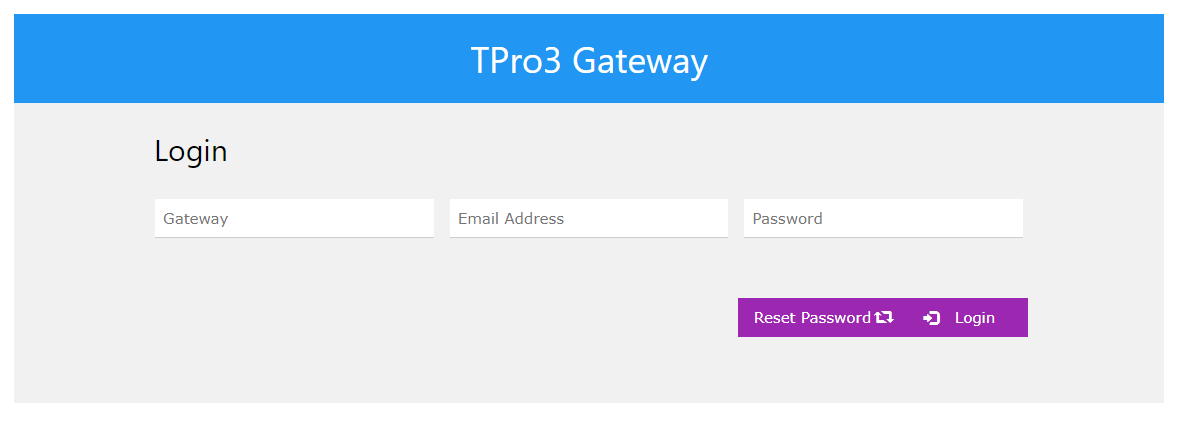
Log into the TPro3 Gateway
- The Store Manager and Parts Manager have the login credentials.
- The Gateway is RPM Machinery (even for Kenney Machinery)
- If this is your first time logging in click Reset Password
- Enter your email address (parts manager)
- Put in RPM Machinery for the Gateway
- Wait for the Password Reset Email
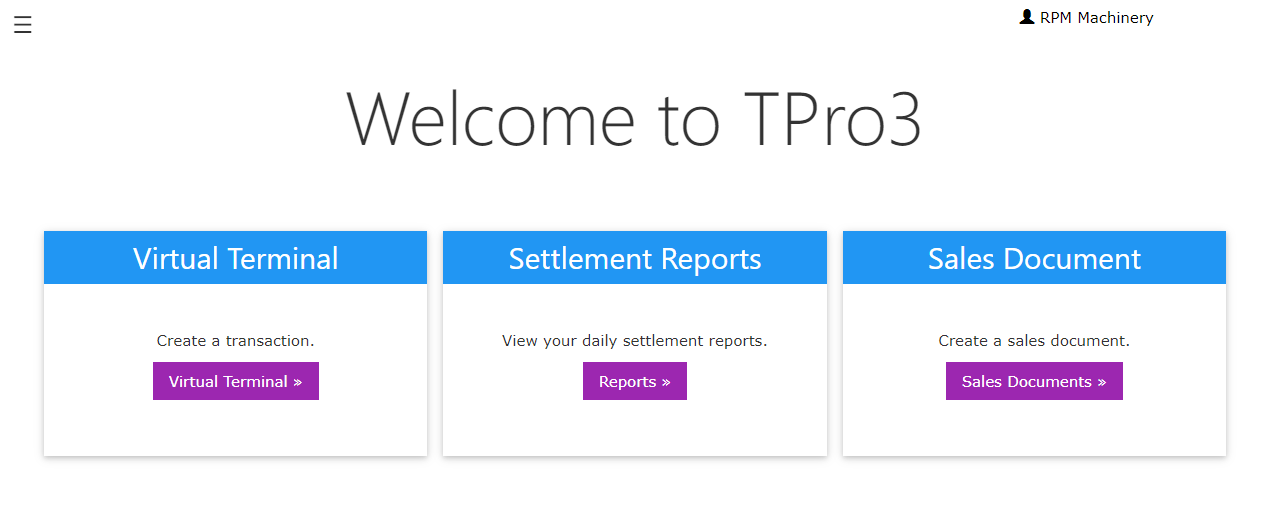
Click on Virtual Terminal
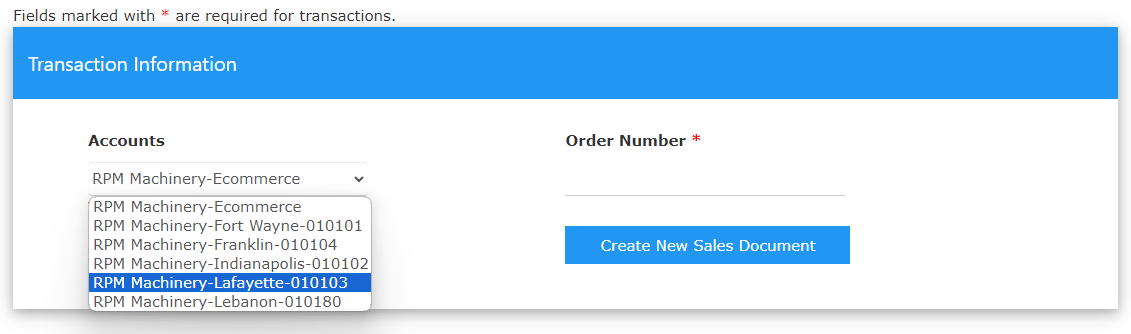
Transaction Information
- Select your location from the Accounts drop down
- Enter the Order Number from CDK
- Leave the Transaction Type as Sale
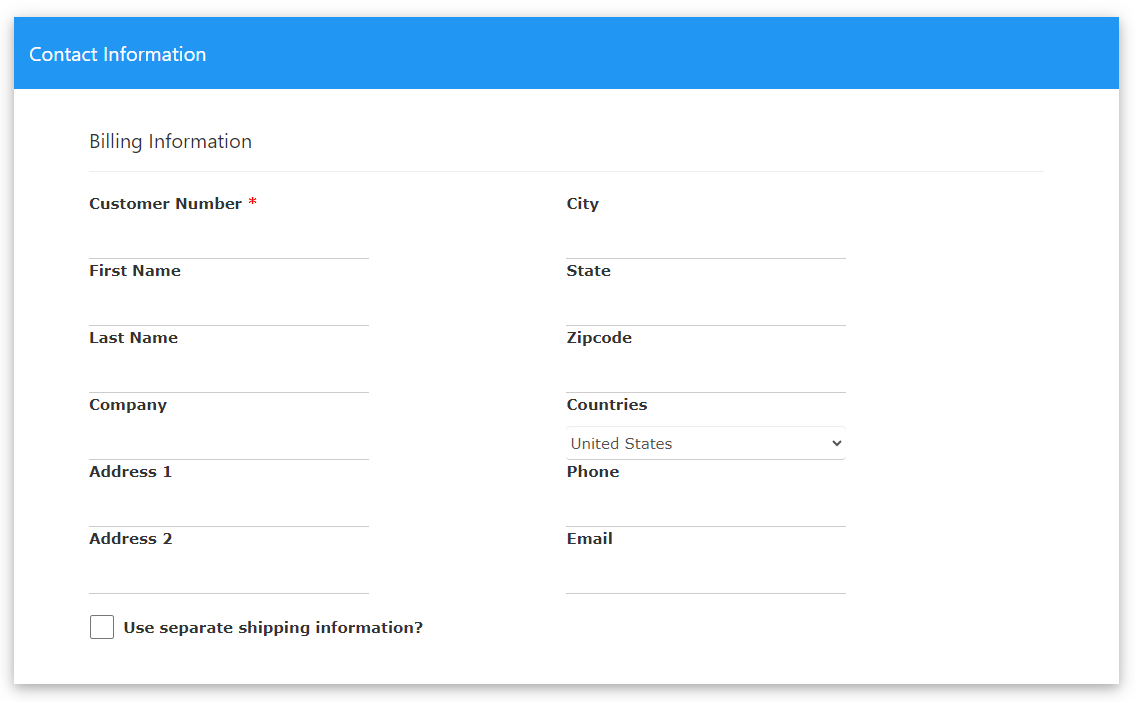
Scroll down to Contact Information
- Enter the Customer Number from CDK
- Add the Billing Address
- At a Minimum we need to collect the Zipcode for payment processing
Scroll down to Payment Information
Accuracy Counts! Make sure the details below are entered exactly. If anything is wrong then the payment will not process.
- Enter the Amount for the transaction
- Add the following info from the Customer's Card
- Card Holder (Name)
- Card Number
- Expiration Month & Year
- CVV (typically on the back)
The Field Name is Above the field in this section. The form can be confusing at first glance.
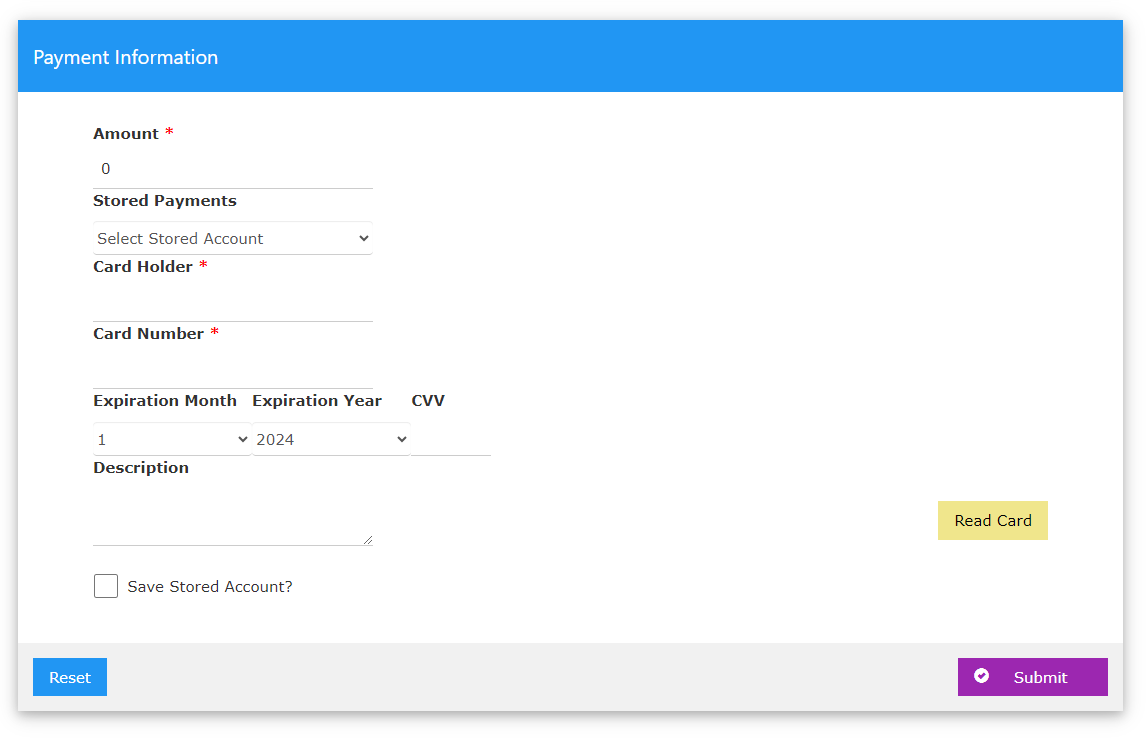
Click Submit
The Read Card button is used if you are swiping the card. For the purpose of this process we recommend manual entry.
Print Receipt
- Click the Print Receipt button at the bottom of the page
- Click Back to process the next payment